
Think of it as a meeting within a meeting.
Create private video chats within virtual meetings
Easily incorporate SideSpeak into
your favorite virtual
videoconference application
and allow participants to privately
connect with each other
during live meetings.
Better than virtual Breakout rooms.
With SideSpeak, anyone can easily
and quickly initiate private sessions.
No organizer needed.
Support Resources
Keyboard Shortcuts
Keyboard Shortcuts
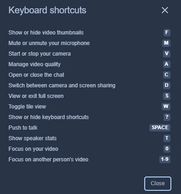
Use your keyboard for fast access to popular features within the SideSpeak app.
To access these keyboard shortcuts, type a "?" on your keyboard or click the 'more actions' icon (the three vertical dots) located on the bottom right of the SideSpeak window and select 'View Shortcuts'.
Toggle View
Keyboard Shortcuts
When you join a SideSpeak session, your default view displays the participant in the main viewing window. To toggle the view to show you next to your guest, click the 'Toggle tile view' icon located on the bottom right of the screen (four boxes).
To switch back to the default view click the 'Toggle tile view' icon.
Picture-in-Picture

If you are using a 'Chrome' browser, from the SideSpeak meeting window, right-mouse click and select 'Picture-in-Picture' to place the current meeting 'on top' of all other windows/apps. You can resize the picture or move it anywhere on screen.
Open in New Window
Open in New Window
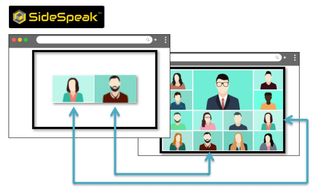
By running the SideSpeak app in it's own window, you have total control to better fit your particular environment. This feature also greatly improves overall performance and video quality.
To accomplish this task, either select the checkbox, 'Open in New Window', from the host or join screens or select this option from the main app menu. Once in the new window you can resize the app as needed.
Used along with the 'Always On Top' option (see details on this page), this feature can greatly enhance your meeting experience by keeping the SideSpeak app window at the forefront of your videoconference.
mmhmm
Open in New Window
mmhmm
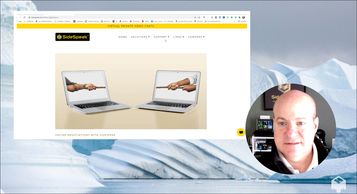
Add a little pizazz to your next SideSpeak session by incorporating mmhmm.app.
Fully compatible with SideSpeak, mmhmm allows your presentations to stand out with custom effects, backgrounds, and animations.